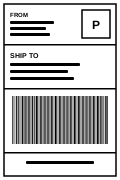
Paper size, scale, and margin settings that stop a label from shrinking in the print dialog.
From screen to stock.
Pick a tool and label size. Match the size to the roll in your printer.
Fill in your labels. The preview updates as you type; no account needed yet.
Download the PDF. Studio tools need a free account (email and password, no card). The shipping converter needs no account.
Print at 100% scale. Choose the matching paper size, set margins to none, and print one test label before the full run. See the printer setup checklist.
Start with the stock on your desk.
These sizes exist in the tools. The printer's width, feed and label system still need to match. A PDF size alone cannot prove stock compatibility.
Yes. Every tool and every PDF download is free. There is no paid plan and no card to enter.
Do I need an account?
You can design and preview labels without one. Downloading a PDF and saving projects need a free account (email and password), so your PDFs and projects stay with you.
Does the 4x6 shipping label converter upload my label?
No. The shipping label converter runs in your browser, needs no account, and your label file never leaves your device.
Which printers work?
Any printer that can print a PDF at the label's real size. That includes 4-inch direct thermal printers such as Rollo, Zebra, and Munbyn for 4x6 labels, and Dymo LabelWriter-style printers for small rolls.
Why is my label printing too small or cut off?
The print dialog is usually scaling the page. Pick the paper size that matches your label, set scale to 100% or Actual size, and set margins to none. The too-small printing guide walks through it.
Does Label Ninja create FNSKUs or buy postage?
No. The FNSKU tool prints identifiers you already have from Seller Central, and Label Ninja does not sell shipping postage.
How long are my PDFs kept?
A downloaded PDF is yours to keep and reprint. Copies in My Exports can be downloaded again for 7 days.
Warehouse bin labels
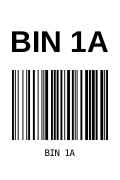
One complete 4" x 6" label per bin — the bin number on top, its CODE128 barcode underneath — for Rollo, Zebra, and any 4-inch direct thermal printer.
1 bin = 1 pageCODE128Exact size PDF
Printed before the number
Added after the number
Up to 200 labels per PDF
inches
inches
1 thin – 5 bold
inches
Settings:Unsaved
Whatnot show number labels
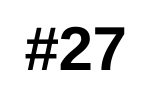
Numbered item labels for your next show. Choose a range and stock, then download one PDF. No Whatnot account connection or shipping postage.
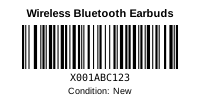
Print an existing FNSKU with the item title, CODE128 barcode and condition on a 2" x 1" label. Copy your identifier from Seller Central; this tool does not issue FNSKUs. UPCs and other single barcode values work too.
2 x 1 inCODE128Exact size PDF
Copy it from Seller Central (FNSKUs start with X00). UPCs work too.
Short is best on 2" x 1"
Settings:Unsaved
Thermal label printer guides
Set up a label printer for 4x6 shipping, bin, barcode, and FNSKU labels
Start with your label stock, match the PDF and driver sizes, then print one test page at 100% scale. Use these guides to fix small, sideways, blank, or skipped labels before running a batch.
Universal thermal label printer setup checklist
Use this first for Rollo, Zebra, DYMO 4XL, Brother, MUNBYN, Nelko, Polono, Jadens, and most 203 DPI direct thermal printers. It matches the recurring setup pattern shown by official Rollo setup pages, Zebra's ZD421 documentation, DYMO LabelWriter help, and shipping-platform support guides.
Install the real driver before plugging in
Download the current driver or setup utility from the printer maker. On Windows, this prevents the printer from showing up as a generic USB device. If it already did, unplug it, install the driver, reboot if needed, then reconnect.
Set the exact label size
For shipping labels use 4" x 6" or the closest driver option, often 100 x 150 mm, 102 x 152 mm, or 4 x 6 in. For small barcode labels use the exact stock size such as 2" x 1", 1" x 0.5", or 3" x 2".
Print at 100% scale with no margins
In Chrome or the system print dialog, choose Scale 100%, Margins None, and the correct orientation. Do not use Fit to page if your barcode is shrinking, blurring, or printing off-center.
Calibrate after changing label rolls
If labels skip, feed continuously, stop halfway, or start in the wrong spot, run printer calibration. Zebra calls this SmartCal on ZD421/ZD621 models; other printers usually have a feed-button calibration sequence or setup utility.
Label Ninja print settings that usually work
Warehouse bins: 4" x 6" portrait or 6" x 4" landscape, no margins, 100% scale. Whatnot numbers: choose matching stock in Label Ninja, then choose the same paper size in the driver. FNSKU/barcode labels: start with 2" x 1", 100% scale, and make sure the barcode is not stretched by the print dialog.
Brand setup guides
Rollo printer setup for 4x6 labels
Searches this solves: how to set up Rollo printer, Rollo 4x6 label setup, Rollo printing sideways, Rollo blank labels, Rollo skipping labels.
Install the Rollo wired or wireless setup path from Rollo's setup page.
Set paper size to 4 x 6 in, 100 x 150 mm, or 102 x 152 mm depending on driver.
In Chrome print preview choose the Rollo printer, margins none, and scale 100%.
If the print is sideways, change orientation first before changing Label Ninja layout.
If labels feed wrong, recalibrate from the Rollo utility or feed-button sequence.
Start with the job and the devices you print from. Check the exact model, stock and current driver support before buying. These are manufacturer specifications and practical selection checks, not hands-on product reviews.
Specifications checked October 5, 2026. Shopping links open Amazon searches; their models, sellers and prices can vary.
Affiliate links: As an Amazon Associate I earn from qualifying purchases. About shopping links.
6 printer choices. Compare exact models, not just brand names.
Shared or mobile packing table
Rollo Wireless X1040
Connection
Wi-Fi / AirPrint + USB
Resolution
203 DPI
Label width
1.57–4.1 in
Feed
Fanfold or external roll
Who it's for: You print from several devices or need phone printing over Wi-Fi.
Skip if: One USB-connected computer already handles all your labels, or your stock falls outside the supported width.
No listed printer matches all these requirements. Try another connection or turn off the fanfold filter. Unknown support is excluded rather than assumed compatible.
Choose label stock before you buy
Match the printer's supported width, material and feed type first. A printable PDF size does not prove that your printer can feed that stock. Rollo uses direct thermal paper with gaps or perforations; DYMO 5XL and Brother QL models have their own label requirements.
Affiliate links: As an Amazon Associate I earn from qualifying purchases. About shopping links.
Compare 4x6 labels on Amazon for printers that support generic direct thermal stock. Check roll or fanfold feed and the exact dimensions; these are not a universal DYMO or Brother supply.
Compare 2x1 labels on Amazon for item numbers or product labels. Confirm your printer's minimum width and height, then print the 2x1 PDF at Actual size.
Compare label holders on Amazon if your printer feeds labels from behind. Check roll diameter, core size and desk clearance. Internal-roll printers may not need an external holder.
Select the media preset, then add text, barcodes, or artwork.
Test before a full run
Inspect the PDF, print one page, and scan any barcode before printing the rest. A downloaded PDF can be printed again as many times as you need. Label Ninja creates label artwork; it does not purchase shipping postage.
Thermal label printer FAQ
Why is my 4x6 label printing too small?
The print dialog is usually scaling it down. Choose the exact 4x6 paper size, set margins to none, and set scale to 100% instead of fit to page.
Why is my thermal label printing sideways?
The driver orientation does not match the label design. Change Portrait/Landscape in the print dialog, then choose the matching Label Ninja layout.
Why is my label printer feeding blank labels?
Blank feeds usually mean calibration, wrong media sensing, upside-down thermal labels, or the wrong label type in the driver. Recalibrate after reseating the roll.
What printer should I buy for eBay and Amazon labels?
For 4x6 shipping labels, choose a printer that supports a 4-inch print width and the stock you plan to use. Compare its connection type, current driver support and label requirements in the printer checklist above.